Sunday, May 20, 2018

Dynamics 365 Finance & Operations, Retail and Talent - Cloud and on-premises feature comparison (As on 20/‎05‎/‎2018)

Cloud and on-premises feature comparison
This topic shows whether each feature is available in these products:
·        Dynamics 365 for Finance and Operations (cloud)
·        Dynamics 365 for Finance and Operations (on-premises)
The following tables list the product areas. Cloud and on-premises support is listed for the feature as a whole. Where specific features differ from the area overall, the features are listed on a separate line in the Feature column.
Dynamics 365 for Finance and Operations
Area
Feature
Cloud
On-premises
Compliance and certifications

Yes
Yes

SOC 1 Type 1 certification
Yes
No
Cost accounting

Yes
Yes

Cost accounting content pack for Power BI
Yes
No

Cost accounting workspace for mobile app
Yes
No
Cost management

Yes
Yes

Cost management content pack for Power BI
Yes
No
Data management and integration

Yes
Yes

Configuration-driven extension
Yes
No

Export data to your own data warehouse
Yes
Yes

Enable the export of incremental updates to a data entity
Yes
No

Data integrations
Yes
Yes
Document management

Yes
Yes
Financial management

Yes
Yes
Help

Yes
No
Human resources

Yes
Yes
Intelligence

Yes
Yes

Electronic reporting (ER) - Integration with LCS
Yes
No

Electronic reporting (ER) - Integration with SharePoint
Yes
No

Integration with PowerBI.com
Yes
No

Analytical workspaces
Yes
No

Intelligent business process: Recommendations
Yes
No

Authoring Power BI reports with OData using Power BI desktop or Excel PowerQuery tools
Yes
No

SQL Server Reporting Services (SSRS) supports scaling out
Yes
No

Telemetry is transferred into the cloud
Yes
No
Inventory management

Yes
Yes
Lifecycle services

Yes
Yes

Configurable business processes
Yes
No
Localizations

Yes
Yes
Manufacturing

Yes
Yes
Master planning and forecasting

Yes
Yes
Mobile app, workspaces, and platform

Yes
Yes
Office integration

Yes
Yes
Organization administration

Yes
Yes
Payroll

Yes
Yes

Direct deposit
Yes
No
Procurement and sourcing

Yes
Yes

Punch-out to external catalog from purchase requisition
Yes
No

Purchase spend analysis Power BI reports
Yes
No
Product information management

Yes
Yes
Product master data

Yes
Yes
Production

Yes
Yes

Production performance Power BI reports
Yes
No
Project management and accounting

Yes
Yes
Sales

Yes
Yes

Sales and profitability performance Power BI reports
Yes
No
Security

Yes
Yes
Service management

Yes
Yes
Supply chain management

Yes
Yes
Transportation management

Yes
Yes
Vendor collaboration

Yes
Yes
Warehouse management

Yes
Yes

Mobile warehouse app
Yes
Yes

Warehousing Power BI reports
Yes
No
Web client

Yes
Yes

Task recorder - Save or load task recordings from the BPM library
Yes
No
Support

Yes
Yes

Access to Support via the Help & Support menu
Yes
No
Development and administration
Area
Feature
Cloud
On-premises
Build and test

Yes
Yes
Extensibility

Yes
Yes
Monitoring and telemetry

Yes
Yes
Platform compatibility

Yes
Yes
Servicing

Yes
Yes

Servicing environments
Yes
No
Trace Parser and PerfTimer

Yes
No
Upgrade

Yes
Yes

Upgrade
Yes
No

Upgrade and support for previous versions
Yes
No
Visual Studio development

Yes
Yes
Dynamics 365 for Retail
Area
Feature
Cloud
On-premises
All Retail areas
All Retail features
Yes
No
Dynamics 365 for Talent
Area
Feature
Cloud
On-premises
All Talent areas
All Talent features
Yes
No

Sunday, December 10, 2017

Relevance Search - Dynamics CRM

Relevance Search distributes a search in a single result list and sorts it by relevance based on a scoring concept. One key thing to know is that the higher the score, the more relevant the item.
Relevance Search can:
• Find matches to any word in the search phrase. Matches include various forms of the search word for example, “service,” will match to “servicing,” or “serviced”
• Search for text in emails and notes
• Search records that you own as well as those that have been shared with you
• Search for text in an Option Set and Lookup field
• Search for text in SharePoint integrated documents (scheduled to be included in the next Dynamics 365 update)
• Search for text within Documents in Dynamics 365. These include documents in a Note, Attachments, Email, and Appointments.
As you can see, the Relevance Search can do many great things but it can also result in millions of matches depending on the size of your organization. Luckily, for us, Microsoft has thought about that and included a feature called Facets and Filters. We get additional filtering by Record Type, Owner, Modified Date, and Created Date to personalize search experience.
Additional Filtering using Facets and Filters
Global Facets: You can refine your search results to Record Type, Owner, Created On, or Modified On. In this example below, I filtered the search results to only show records for a specific “Owner.”


Entity Specific Facets: When you click on a specific record type, additional facets appear. These facets are specific to the fields of the Record Type/Entity. System Administrators and System Customizers can configure which fields are available for faceting through the entity’s Quick Find view. In the example, clicking on Cases gave me two additional facets: Priority and Origin.

End user configuration: End users can also personalize their search experience by configuring the facet fields that they would like to see for any searchable entity.

Narrow your search to get results that are more relevant to your needs.

Tuesday, November 21, 2017

PSA - Universal resource scheduling update

When scheduling a resource requirement in Dynamics 365, we now have the ability to take an existing resource requirement and break down the hours into different date ranges by creating multiple requirement details.

Navigate to the resource requirement record that needs to be scheduled.

Click on specify pattern to break down the resource requirement into multiple requirement details.

Navigating to the schedule board, a requirement that has been broken down into multiple requirement details is rendered on the schedule board as shown below


When a booking record for a requirement detail is scheduled within the specified pattern, the amount of hours that have been scheduled is displayed as shown below.


Progress Display

The number of hours that need to be staffed and the total number of hours currently booked for the requirement are displayed in the chart at the bottom right of the schedule board. The colors within the chart are based on the booking status which is configurable within the field service administration panel.


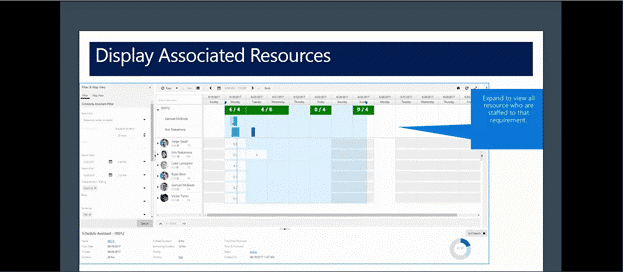
Display Associated Resources

When a search is made for available resources to staff a resource requirement, resources that are currently associated to the resource requirement (if any) are displayed in a box at the top of the schedule board.

This provides the dispatcher with the ability to view current resources that are scheduled to a resource requirement and provides the ability for schedulers to prioritize current resources when staffing an ongoing resource requirement.


Seamless Zooming

When viewing the schedule board, we now have the ability to either zoom in or out depending on the current view that the schedule board is set to. Example: If a schedule board is set to display bookings on the weekly view, you can navigate to the weeks schedule for a resource and perform the following steps.

Right click and zoom in.

The schedule board will display all the bookings for the specific resource for the week in question in the daily view as shown below.


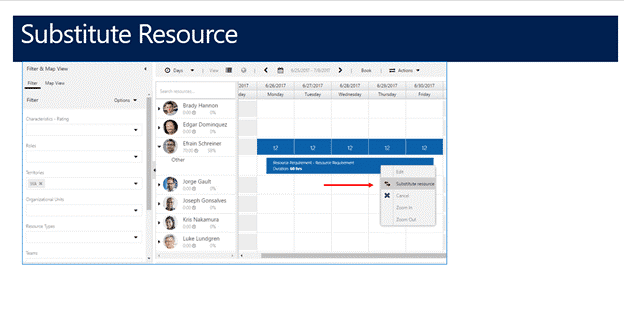
Substitute Resources

With the recent updates to Dynamics 365 for field service, we now have the ability to substitute a resource that is currently assigned to a booking by following the steps below.

Navigate to the schedule board and right click on the booking that needs a new resource.

Click on Substitute resource as shown below.


The booking that requires a resource change along with the resource gets loaded to the top of the schedule board. This gives the dispatcher context on the booking that requires a new resource and the current resource that is assigned to the booking.

The schedule board will then display a list of available resources that can be assigned to the booking in question – based on the start time and end time for the booking that is displayed in the filter panel.

You can then select a new resource from the list of resources that have availability that covers the start time and end time of the booking in question. Click substitute at the top of the schedule board to complete the swap.


Copying Resource Requirements

The ability to copy existing resource requirements is now available in Dynamics 365 with the October 2017 Update. This is useful especially when you have bookings that have certain skill and time requirements. This can be accomplished by following the steps below.

Navigate to the resource requirement that needs to be copied

Click copy

The details of the requirement along with related child records like characteristics and roles will be copied over to the new resource requirement record.

That’s what’s new for Universal Resource Schedule Enhancements from the Dynamics 365 October 2017 Update.

More Than One Form Was Opened at Once for the Lookup Control

In Dynamics 365 for Finance and Operations, when subscribing to a lookup event to modify an existing lookup on a form control, you must...